Usage
In the editor, click the EduPlay button (or use Insert > Insert EduPlay video).
Paste the video link, for example
https://eduplay.rnp.br/app/video/353479.Optionally type the link text; if you had text selected, it is pre-filled. The text is used as the title of the player for screen readers.
Click Insert.
Invalid links (other hosts, http, wrong route) keep the dialog open with an error message. A link in the embed form (/app/video/embed/{id}) is normalized to the canonical form.
The inserted content is a normal link. When the content is displayed, media_eduplay replaces it with the official player.
Accessibility
Checked on 2026-10-09 with Moodle 5.3 and axe-core 4.10.2 on the open dialog, both in the normal and in the error state (no violations reported).
The toolbar button is named “Insert EduPlay video” and can be focused and activated with the keyboard.
The dialog is a modal (
role="dialog",aria-modal, title linked witharia-labelledby); focus moves into it when it opens and returns to the editor when it closes.Both fields have a visible
label; the URL field is described by its help text and by the error message.An invalid link keeps the dialog open, shows the error (
role="alert", announced by assistive technologies), setsaria-invalidand puts the focus back on the URL field.The error text has a contrast ratio of 5.0:1 on the dialog background (minimum 4.5:1).
Not verified: a screen-reader test (NVDA/VoiceOver), a real touch device and high-contrast or zoomed (400%) modes. axe reported the colour contrast of some texts as “needs review”, so the values above were computed by hand.
Screenshots
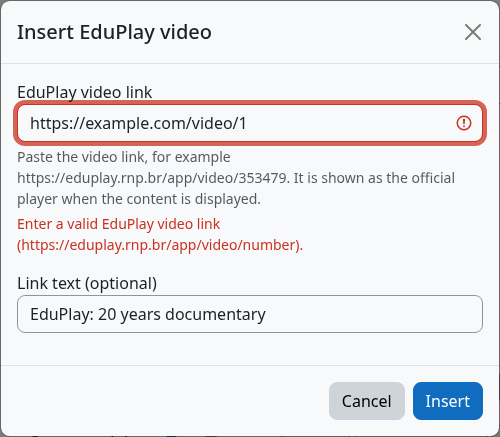
A link that is not an EduPlay video keeps the dialog open and explains why.